HTTPS en OVH
Vamos a configurar el protocolo HTTPS para el acceso a nuestras aplicaciones, para ello tienes que tener en cuenta los siguiente.
-
- Vamos a utilizar el servicio https://letsencrypt.org para solicitar los certificados de nuestras páginas.
Explica detenidamente cómo se solicita un certificado en Let’s Encrypt. En tu explicación deberás responder a estas preguntas:
- ¿Qué función tiene el cliente ACME?
El cliente ACME tiene dos funciones, por un lado valida el dominio y por otro lado solicita el certificado.
- ¿Qué configuración se realiza en el servidor web?
En el servidor web autogenera un certificado y una clave para asegurar nuestro sitio y añade los puertos de escucha al 443 que son los que utiliza ssl para la navegación segura por https.
- ¿Qué pruebas realiza Let’s Encrypt para asegurar que somos los administrados del sitio web?
La primera vez que interactuamos con let’s encrypt para solicitar los certificados, se crean un par de claves rsa. Después se le demuestra a let’s encrypt que el servidor controla uno o varios dominios a través de a través de los retos. Hay dos tipos de retos principalmente, http-challenge y dns-challenge.
Mediante el http-challnge, let’s encrypt manda un token al servidor para ponerlo en una ubicación especifica del servidor web, además de ente token, también se guarda la firma del token de forma que si let’s encrypt es capaz de acceder al puerto 80 y obtener el fichero con la configuración esperada, valida la firma y quedara confirmado que el sitio web es de nuestra prioridad.
- ¿Se puede usar el DNS para verificar que somos administradores del sitio?
Si, siempre y cuando contemos con dns en nuestro servidor y los plugins que se vayan a usar sean dns-challenge.
Solicitud de los certificados:
Para solicitar los certificados para nuestros sitios web www.iesgn07.es y portal.iesgn07.es, necesitaremos la herramienta de let’s encypt certbot. Certbot se instala de la siguiente forma:
sudo apt install certbot
Como nuestro servidor cuenta con dos sitios web, se solicitaran los certificados de dos formas distintas: Para el primer sitio web www.iesgn07.es, se solicitara ejecutando el comando certbot –nginx:
debian@hades:~$ sudo certbot --nginx
Saving debug log to /var/log/letsencrypt/letsencrypt.log
Plugins selected: Authenticator nginx, Installer nginx

Which names would you like to activate HTTPS for?
- - - - - - - - - - - - - - - - - - - - - - - - - - - - - - - - - - - - - - - -
1: portal.iesgn07.es
2: www.iesgn07.es
- - - - - - - - - - - - - - - - - - - - - - - - - - - - - - - - - - - - - - - -
Select the appropriate numbers separated by commas and/or spaces, or leave input
blank to select all options shown (Enter 'c' to cancel): 2
Cert not yet due for renewal

You have an existing certificate that has exactly the same domains or certificate name you requested and isn't close to expiry.
(ref: /etc/letsencrypt/renewal/www.iesgn07.es.conf)

What would you like to do?
- - - - - - - - - - - - - - - - - - - - - - - - - - - - - - - - - - - - - - - -
1: Attempt to reinstall this existing certificate
2: Renew & replace the cert (limit ~5 per 7 days)
- - - - - - - - - - - - - - - - - - - - - - - - - - - - - - - - - - - - - - - -
Select the appropriate number [1-2] then [enter] (press 'c' to cancel): 2
Renewing an existing certificate
Deploying Certificate to VirtualHost /etc/nginx/sites-enabled/iesgn

Please choose whether or not to redirect HTTP traffic to HTTPS, removing HTTP access.
- - - - - - - - - - - - - - - - - - - - - - - - - - - - - - - - - - - - - - - -
1: No redirect - Make no further changes to the webserver configuration.
2: Redirect - Make all requests redirect to secure HTTPS access. Choose this for
new sites, or if you're confident your site works on HTTPS. You can undo this
change by editing your web server's configuration.
- - - - - - - - - - - - - - - - - - - - - - - - - - - - - - - - - - - - - - - -
Select the appropriate number [1-2] then [enter] (press 'c' to cancel): 2
Redirecting all traffic on port 80 to ssl in /etc/nginx/sites-enabled/iesgn

- - - - - - - - - - - - - - - - - - - - - - - - - - - - - - - - - - - - - - - -
Your existing certificate has been successfully renewed, and the new certificate
has been installed.

The new certificate covers the following domains: https://www.iesgn07.es

You should test your configuration at:
https://www.ssllabs.com/ssltest/analyze.html?d=www.iesgn07.es
- - - - - - - - - - - - - - - - - - - - - - - - - - - - - - - - - - - - - - - -

IMPORTANT NOTES:
 - Congratulations! Your certificate and chain have been saved at:
   /etc/letsencrypt/live/www.iesgn07.es/fullchain.pem
   Your key file has been saved at:
   /etc/letsencrypt/live/www.iesgn07.es/privkey.pem
   Your cert will expire on 2021-03-01. To obtain a new or tweaked
   version of this certificate in the future, simply run certbot again
   with the "certonly" option. To non-interactively renew *all* of
   your certificates, run "certbot renew"
 - If you like Certbot, please consider supporting our work by:

   Donating to ISRG / Let's Encrypt:   https://letsencrypt.org/donate
   Donating to EFF:                    https://eff.org/donate-le
De forma automática, certbot nos permite elegir a cual de nuestros sitios web se le hará el certificado automático y si se desea o no que se haga una redirección de http a https de forma automática.
Funcionamiento:
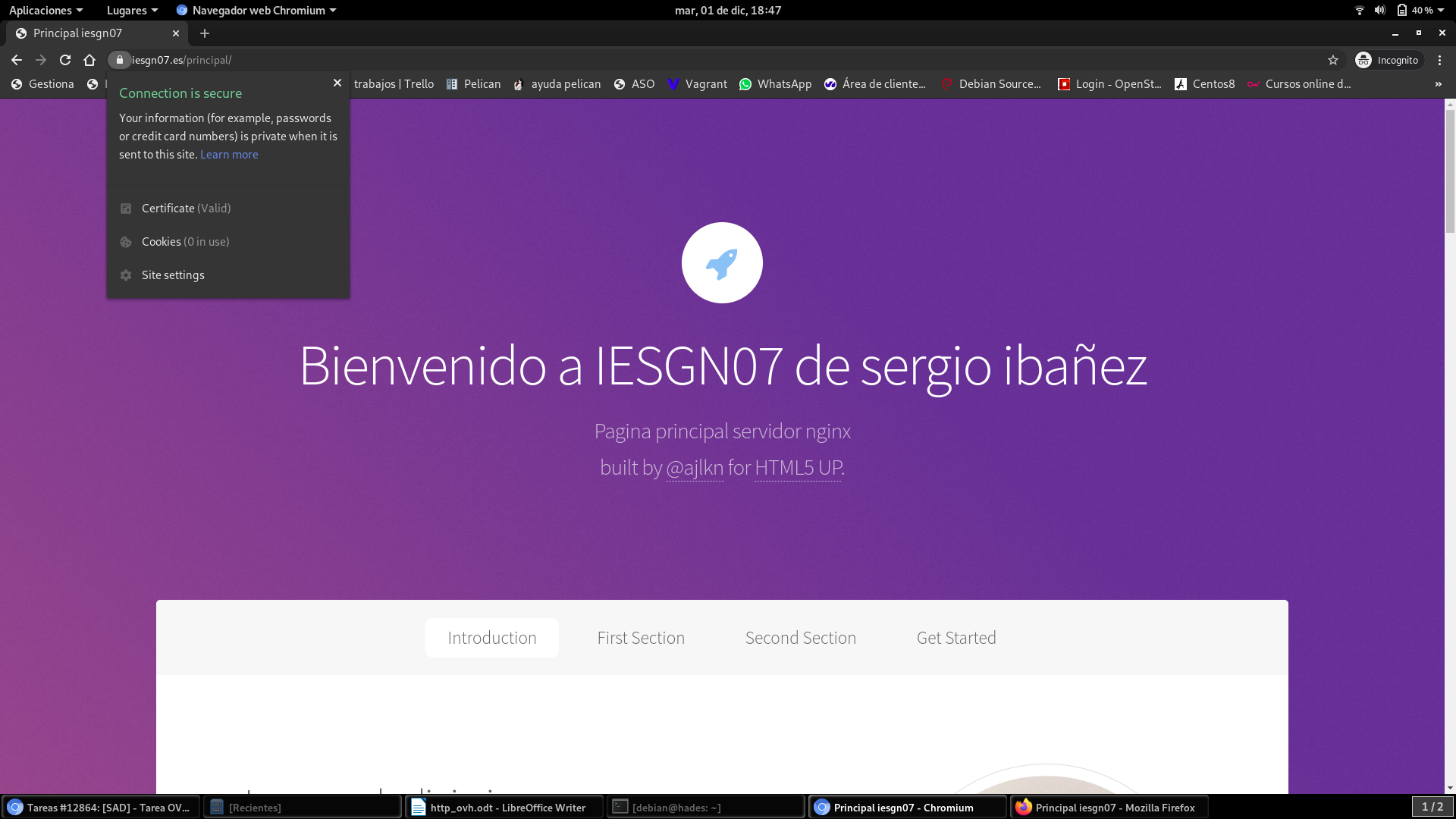
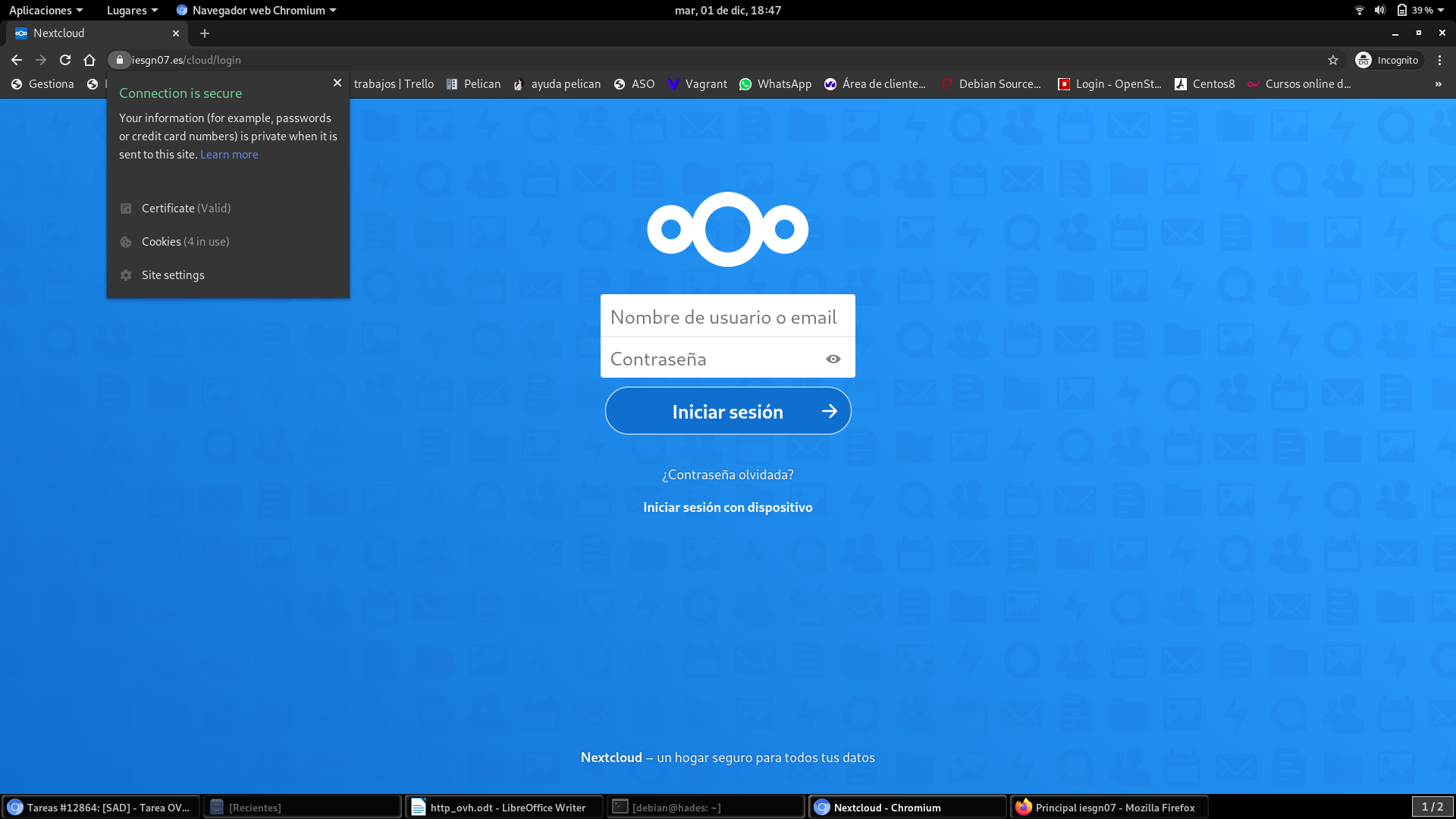
Para el portal.iesgn07.es sitio solicitaremos el certificado de una forma mas manual.
certbot certonly --standalone portal.iesgn07.es
Haciendo uso de la opción standalone, lo que haremos sera instalar solo los certificados, pero no se configurara el sitio https, la configuración y redirección de http a https sera cosa nuestra.
debian@hades:~$ sudo certbot certonly --standalone -d portal.iesgn07.es
Saving debug log to /var/log/letsencrypt/letsencrypt.log
Plugins selected: Authenticator standalone, Installer None
Cert not yet due for renewal

You have an existing certificate that has exactly the same domains or certificate name you requested and isn't close to expiry.
(ref: /etc/letsencrypt/renewal/portal.iesgn07.es.conf)

What would you like to do?
- - - - - - - - - - - - - - - - - - - - - - - - - - - - - - - - - - - - - - - -
1: Keep the existing certificate for now
2: Renew & replace the cert (limit ~5 per 7 days)
- - - - - - - - - - - - - - - - - - - - - - - - - - - - - - - - - - - - - - - -
Select the appropriate number [1-2] then [enter] (press 'c' to cancel): 2
Renewing an existing certificate

IMPORTANT NOTES:
 - Congratulations! Your certificate and chain have been saved at:
   /etc/letsencrypt/live/portal.iesgn07.es/fullchain.pem
   Your key file has been saved at:
   /etc/letsencrypt/live/portal.iesgn07.es/privkey.pem
   Your cert will expire on 2021-03-01. To obtain a new or tweaked
   version of this certificate in the future, simply run certbot
   again. To non-interactively renew *all* of your certificates, run
   "certbot renew"
 - If you like Certbot, please consider supporting our work by:

   Donating to ISRG / Let's Encrypt:   https://letsencrypt.org/donate
   Donating to EFF:                    https://eff.org/donate-le
De estas dos formas ya tendremos nuestros dos certificados, solo faltara configurar el sitio portal para añadirle el certificado y una redirección de http a https.
-
- Utiliza dos ficheros de configuración de nginx: uno para la configuración del virtualhost HTTP y otro para la configuración del virtualhost HTTPS.*
El fichero de configuración de portal, se queda tal cual, no hará falta tocarlo, de ese fichero hacemos una copia a la que añadiremos la configuracion de https quedando el fichero de la siguiente forma:
http:

server {

        listen 80;
        listen [::]:80;

        root /srv/www/drupal;

        index index.html index.htm index.nginx-debian.html index.php;

        server_name portal.iesgn07.es;

        return 301 https://portal.iesgn07.es$request_uri;

        location / {
         try_files $uri $uri/ /index.php?$args;
        }

        location ~ \.php$ {
                include snippets/fastcgi-php.conf;
                fastcgi_pass unix:/run/php/php7.3-fpm.sock;
        }
https:

server {

        listen [::]:443 ssl;
        listen 443 ssl;

        root /srv/www/drupal;

        index index.html index.htm index.nginx-debian.html index.php;

        server_name portal.iesgn07.es;

        location / {
                try_files $uri $uri/ /index.php?$args;
        }

        location ~ \.php$ {
                include snippets/fastcgi-php.conf;
                fastcgi_pass unix:/run/php/php7.3-fpm.sock;
        }
    ssl_certificate /etc/letsencrypt/live/portal.iesgn07.es/fullchain.pem;
    ssl_certificate_key /etc/letsencrypt/live/portal.iesgn07.es/privkey.pem;

    include /etc/letsencrypt/options-ssl-nginx.conf;
    ssl_dhparam /etc/letsencrypt/ssl-dhparams.pem;
}
-
- Realiza una redirección o una reescritura para que cuando accedas a HTTP te redirija al sitio HTTPS.
Server {
	listen 80;
	listen [;;]: 80;
	server_name portal.iesgn07.es;
	return 301 https://portal.iesgn07.es$request_uri;
-
- Comprueba que se ha creado una tarea cron que renueva el certificado cada 3 meses.
Ejecutamos crontab -b y una vez dentro del fichero crontab configuramos la tarea para que se renueve cada 3 meses de la siguinete forma:
* * * */3 * certbot renew --quiet --renew-hook systemctl restart nginx.service
Des esta forma cada 3 meses se hará una renovación de forma silenciosa (sin que el usuario se entere) y se hará un reinicio de nginx para que funcione con los certificados renovados.
-
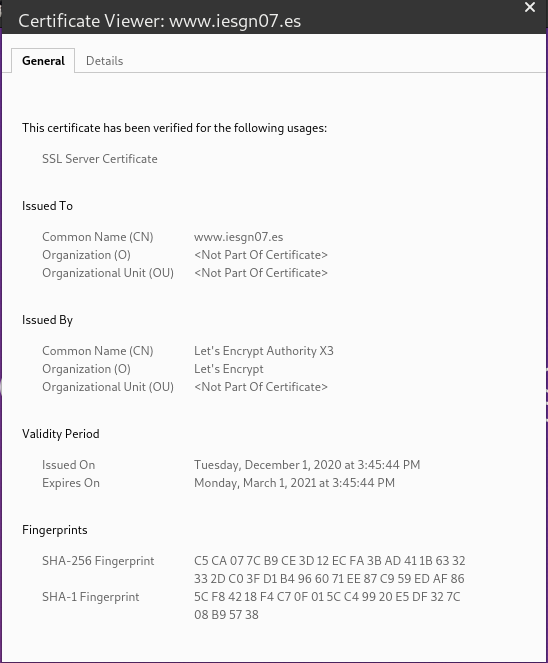
- Comprueba que las páginas son accesible por HTTPS y visualiza los detalles del certificado que has creado.
Certificado www.iesgn07.es:
Certificado portal.iesgn07.es:
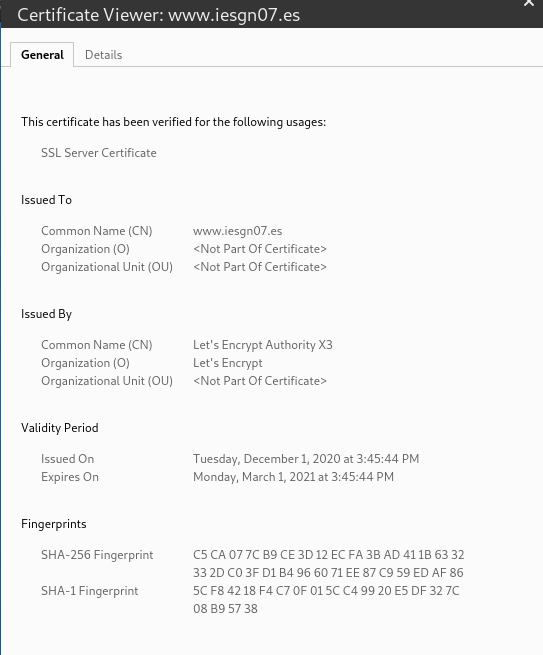
Certificado portal.iesgn07.es:
-
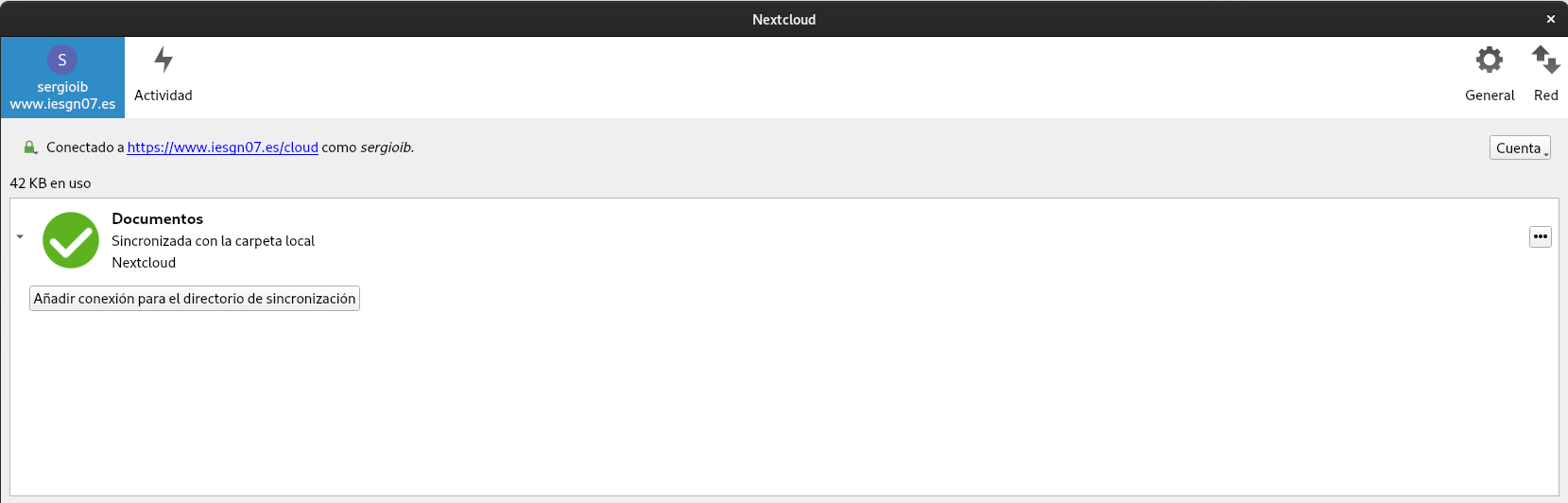
- Modifica la configuración del cliente de Nextcloud para comprobar que sigue en funcionamiento con HTTPS.